
How QuickReviewer’s New Alerts Help You Close Every Loop— From Bell Icon to An Action Center
Creative reviews move fast. Files change, comments pile up, versions jump, and people get tagged across time zones. When alerts are noisy, scattered, or hard to act on, things slip. When they are clear and actionable, teams move faster and make fewer mistakes.
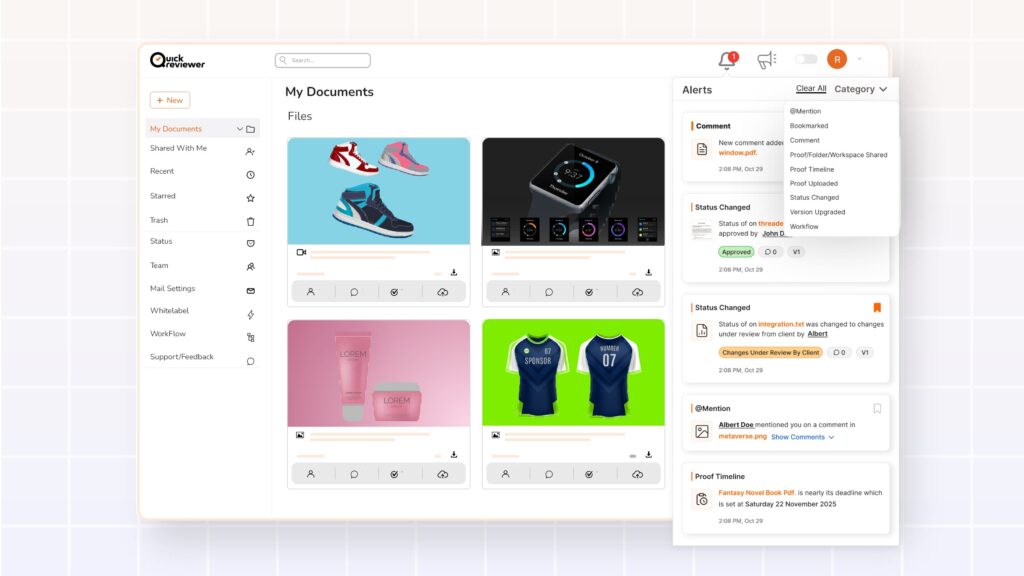
QuickReviewer’s redesigned Alerts are built to work as your personal action center—a focused place where you can see everything that needs your attention, jump straight into the right proof, and never lose track of what matters.
This guide walks through the new Alerts experience, how to use it, and how it tightens your creative collaboration, so nothing falls through the cracks.
Why Alerts Needed a Redesign
In most creative and marketing teams, alerts are either:
- Too noisy (you ignore them), or
- Too vague (you can’t tell what to do next).
Modern notification UX research is clear: notifications should be contextual, actionable, and easy to triage. When they are, they drive productivity and collaboration instead of distraction.
Common issues creative teams face without a strong alert center:
- Designers miss @mentions buried in email threads
- Brand managers don’t see that a proof was moved to Rework
- New versions go unnoticed, and stakeholders comment on outdated files
- Marketers must chase people on chat or email just to confirm “Did you see this?”
QuickReviewer’s redesigned Alerts tackle exactly these problems. Instead of being just a bell icon, Alerts are now a centralized, filterable, clickable action center built for creative review.
Meet the New QuickReviewer Alerts Action Center
At a glance, the new Alerts area is designed so you can:
- Filter by alert type (e.g., @mentions, status changes, new uploads)
- See what’s unread instantly
- Open any proof, folder, or workspace in a new tab with one click
- Scan live status, version, and comment counts without opening the file
- Bookmark important alerts so decisions don’t get lost in the rush
- Skim clustered comments with page numbers and timestamps
Let’s break down each part and how it helps your daily workflow.
1. Alert Categories: Filter the Noise, See Only What Matters
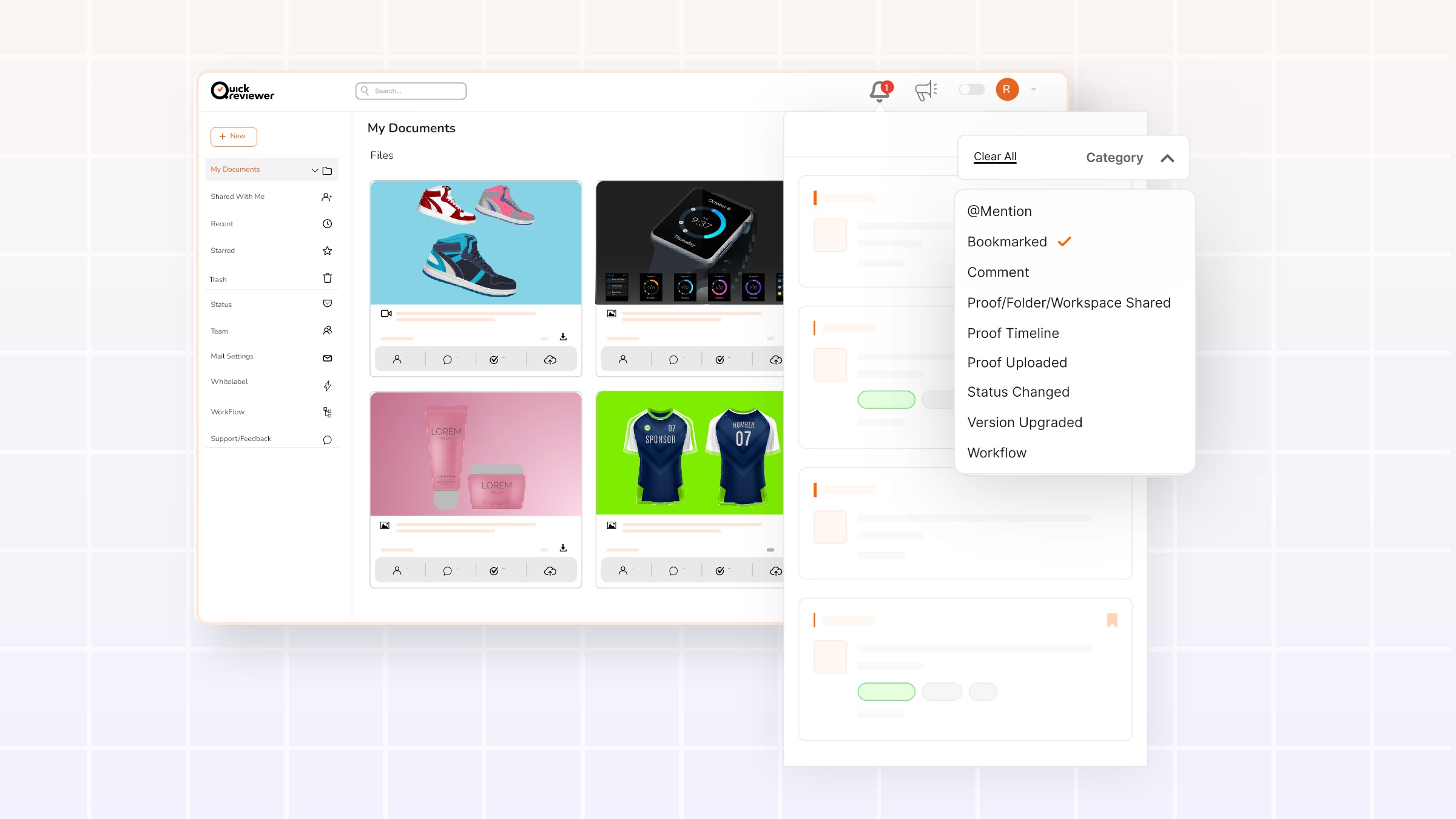
At the top of the Alerts panel, you will now see category filters. These let you instantly narrow your feed to the alert types that matter most right now, instead of scrolling through a mixed list.
The categories include:
- @mention in comments
- Bookmarked
- Comment (on proofs you own)
- Proof / Folder / Workspace Shared
- Proof uploaded
- Proof status change
- Version upgraded
@Mentions: A Dedicated Space for “Hey, You’re Needed Here”
@Mentions typically require immediate attention, especially in large teams and multi-region projects. That’s why they have a special category of their own.
Use the @mention category when you start your day or return from a break:
- See where someone has asked for your input, clarification, or approval
- Jump directly into the exact proof and comment thread
- Avoid missing questions that block others
Bookmarked: Your Personal “Later Today” List
The Bookmarked category lets you defend your focus without losing important work:
- When you see something important but can’t handle it right away, bookmark it
- Later, filter the list by Bookmarked and clear those items in one focused session
- Bookmarked alerts are preserved for 60 days, giving you a safe buffer even on long campaigns
More on bookmarking below—but think of this as your personal mini task list inside QuickReviewer.
Other Key Categories and When to Use Them
- Comment (on your proofs): For proof owners who want to check feedback in batches—great for designers and video editors doing review rounds.
- Proof / Folder / Workspace Shared: See when anything has been shared with you, your team, or your workspace. This is especially useful for agencies and external stakeholders joining mid-project.
- Proof uploaded: Previously, when someone uploaded a file to a shared folder or workspace, no alert was generated. Teams had to ping each other on mail or chat. Now, you get a clear alert whenever a new proof is uploaded, so you always know when a new creative item enters the workflow.
- Proof status change: Quickly see when items move between statuses (Approve, Rework, or custom status), without hunting through folders.
- Version upgraded: Stop commenting on outdated files. Use this filter to catch when a new version is available and shift your feedback to the latest iteration.
2. Read vs Unread: Clear Visual State with Zero Extra Clicks
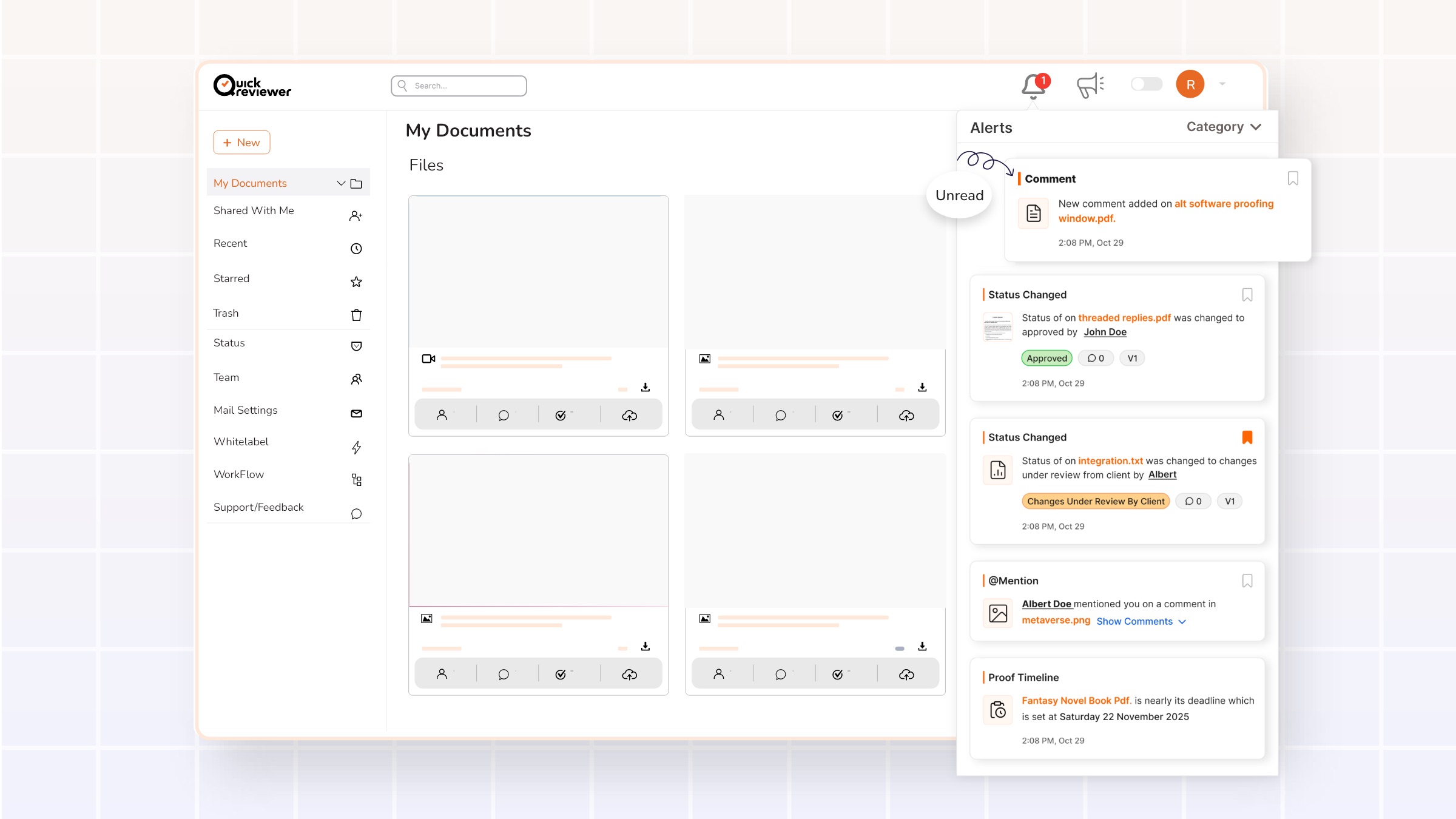
Unread vs read alerts are distinguished visually:
- Unread: The category tag above each alert appears bold with a grey fill.
- Read: Once considered read, the category tag switches to unbold with a white fill.
Here’s the subtle but powerful part:
When you open the Alerts area and keep it open for 3 seconds, all alerts currently visible on screen are automatically marked as read.
This mimics best-practice notification UX where simply viewing the inbox counts as reading, and helps prevent “badge anxiety” and manual clearing.
This approach lets you:
- Quickly scan your alerts,
- Rely on visual cues for what’s new,
- Avoid the friction of manually marking items as read.
3. Alert Thumbnails & Icons: Visual Clarity at a Glance
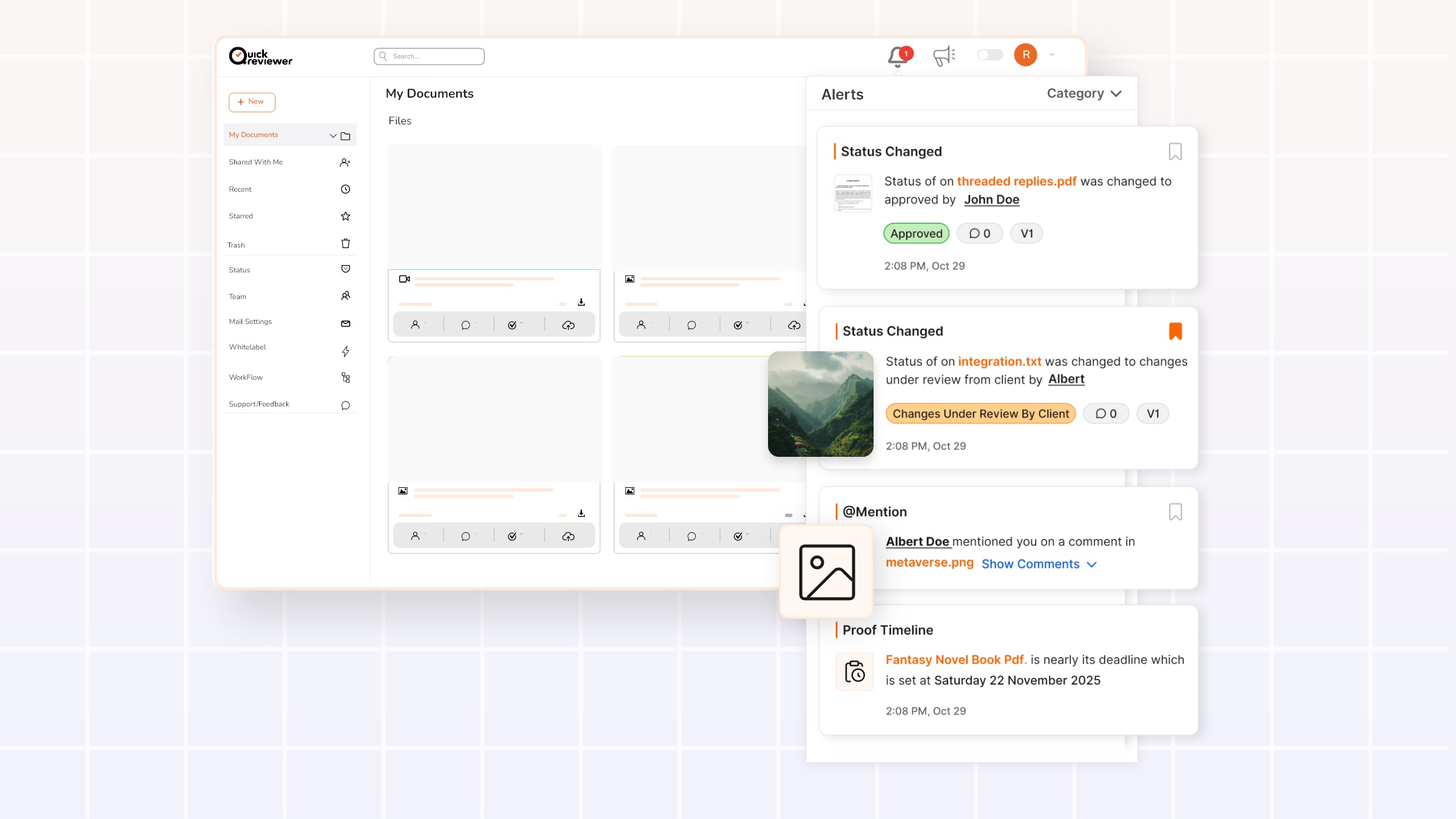
Every proof-related alert now shows a thumbnail preview of the file whenever possible:
- If a thumbnail can be generated, you’ll see an image representing the proof (e.g., artwork, video frame).
- If not, QuickReviewer displays a default system icon, based on its file type.
There are also special icons for alert types where a file preview doesn’t make sense (for example, workspace-level actions).
This is aligned with widely accepted notification UI patterns: visual cues (thumbnails, icons, colors) make it faster to understand what a notification is about.
Optionally, there is also room for thumbnail icon color customization to match your brand’s visual identity—so the Alerts section looks and feels like an extension of your brand, not just generic software.
4. Actionable Alerts: Everything Clicks Through
The new Alerts behave like deep links into your workflow:
- Proofs
- Folders
- Workspaces
…are all hyperlinked and can be opened in a new tab directly from the alert.
This deep-linking design is a proven best practice: notifications work best when they take the user directly to the content or action that matters. No extra searching, no guessing where to go.
To keep things universally understandable, the hyperlink colors are standardized by type and cannot be overridden, even in custom-branded enterprise setups. This ensures:
- Consistent visual language for all teams
- Reduced confusion (e.g., links always look like links)
- Easier onboarding for new users
5. Live Status Tags: See Approval Health Without Opening the File
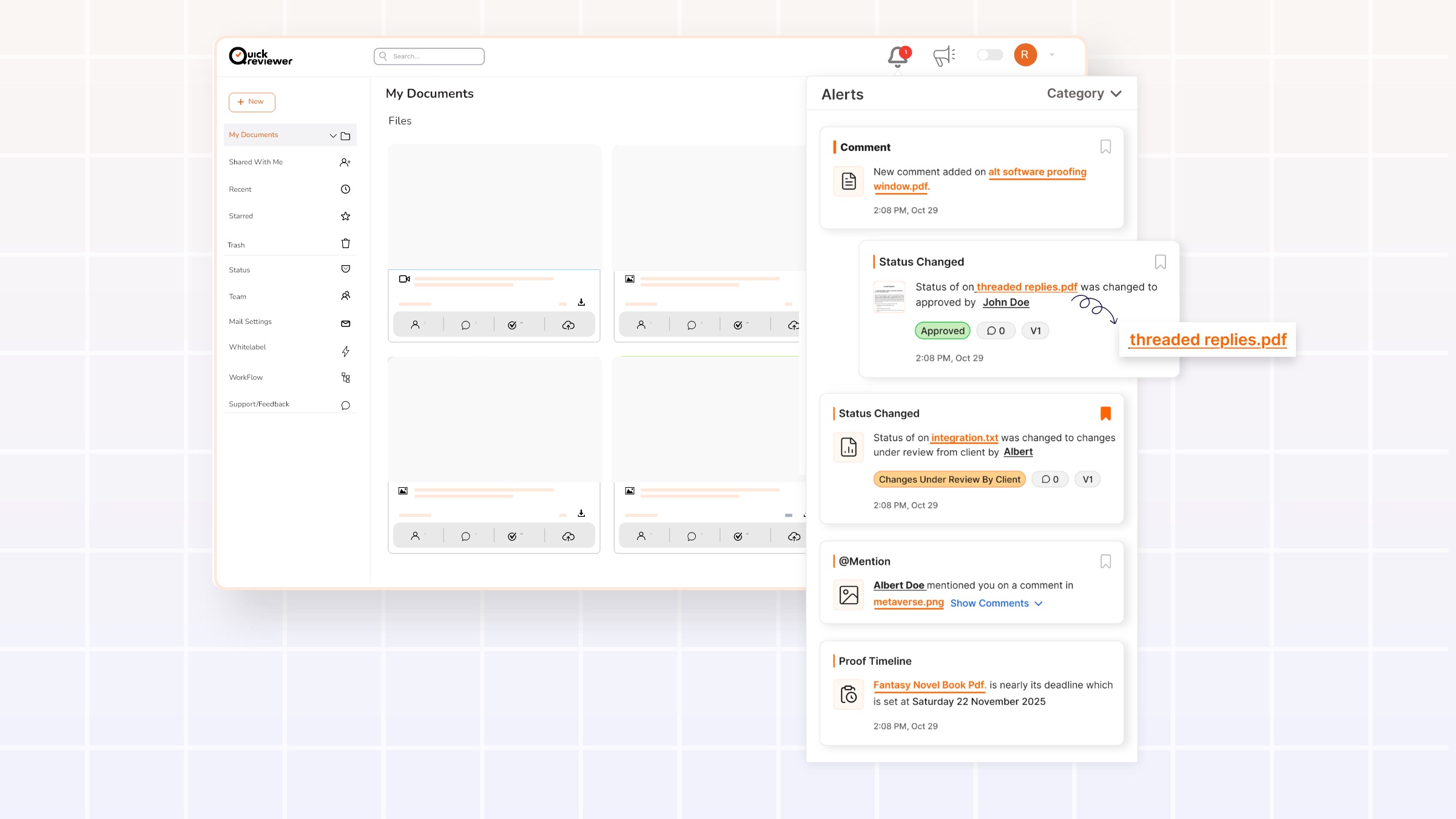
For all file status change alerts, QuickReviewer now displays:
- Status tag (including any custom statuses)
- Current version number
- Number of comments
Status tags are color-coded and consistent across all plans:
- Approve – pastel green
- Rework – pastel red
- Custom – pastel orange
This brings the “health” of a proof directly into the Alerts panel:
- See instantly which items are approved and can move forward
- Find proofs in Rework mode that need updated designs or edits
- Track heavily discussed items by comment count and version number

For creative leads and project managers, this is a huge time saver: you can prioritize your attention based on status and activity, not just file names.
6. Alert Bookmarking: Turn Important Alerts into a Lightweight To-Do List
Every alert now includes a bookmark icon.
How bookmarking works
- Click the bookmark icon to save the alert for later.
- Filter by the Bookmarked category at the top to see only those saved items.
- Bookmarked alerts remain undeleted for 60 days, giving you space to complete long-running approvals or campaigns.

When bookmarking shines
Some practical scenarios:
- A brand manager sees a critical comment thread but is about to join a meeting—bookmark it to revisit later.
- An agency account manager wants to review all “Proof status change” alerts for a key client at the end of the day—bookmark the important ones for an end-of-day pass.
- A creative director wants to sit with only the most strategic items once a week—bookmark those alerts and clear them in a focused block.
Instead of using external task managers or long email threads, your task list lives right where the work happens—inside QuickReviewer.
7. Comment Clustering: Focused Alerts, Less Noise
Too many notifications can be as bad as none. That’s why QuickReviewer now clusters comments by proof, keeping your Alerts list lean without hiding anything important.
How clustering works
- All comments on a proof are grouped into a single alert, not sent one-by-one.
- Clustering happens per active user session, for up to one hour (whichever is shorter / easier for the system to detect).
- After that period, a new cluster is created for new comments on the same proof.
What you see in a comment cluster alert
Each cluster shows:
- The total number of comments included
- Up to 5 most recent comments displayed
- Each comment truncated to 2 lines for quick scanning
- Date and time for each comment
- For PDF and video proofs, each comment shows the page number or timestamp
- For other proof types, the comment text itself is listed
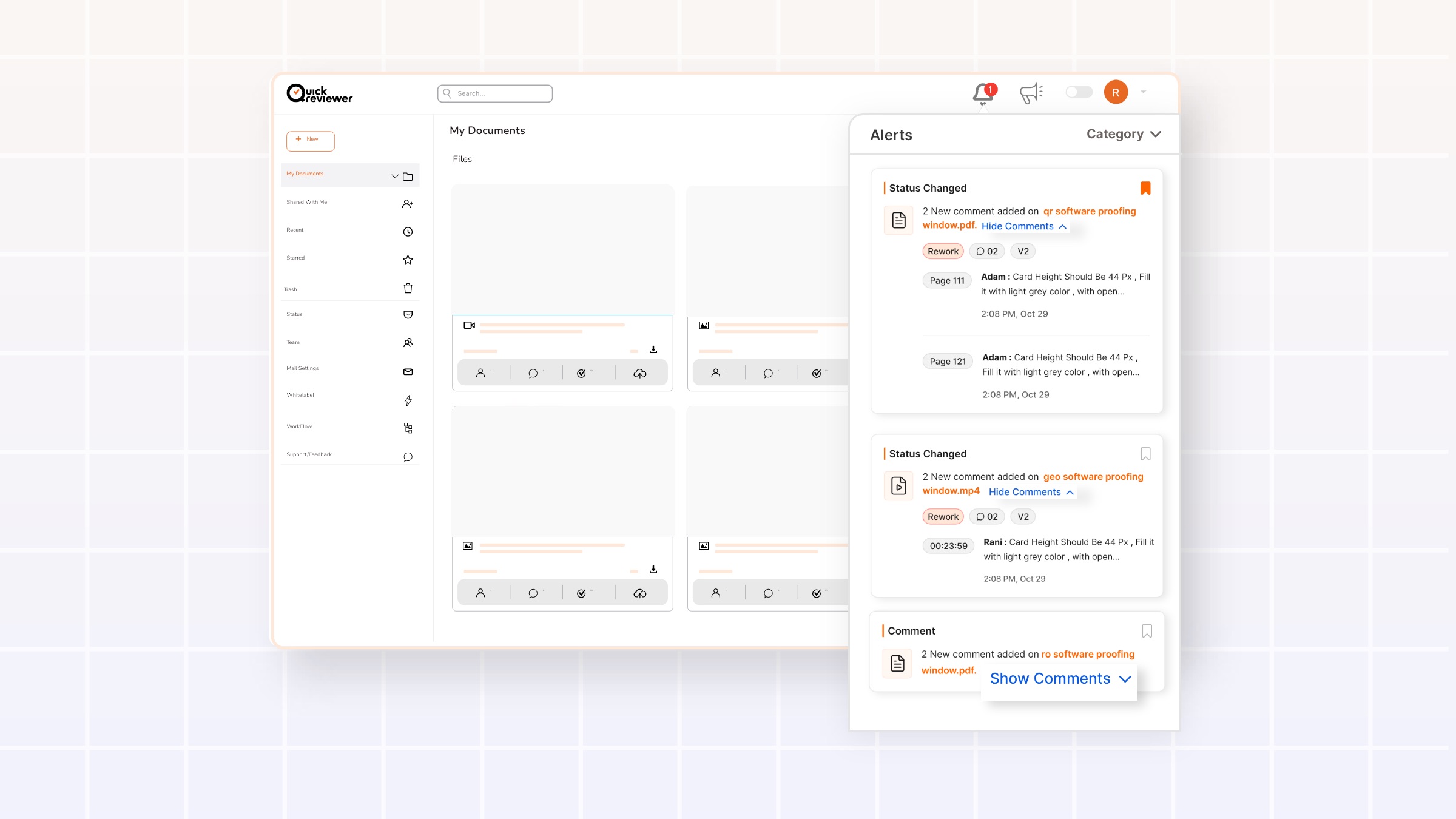
There is also an option to show or hide the full comment list under each alert, so you can decide how detailed you want to get without leaving the Alerts view.
@Mentions are always immediate
One important exception: @mention alerts are never delayed or hidden inside clusters.
- As soon as someone @mentions you, a dedicated alert is sent—no waiting for the “cluster window” to end.
- This preserves the “ping me now if I’m needed” behavior for urgent items, while keeping other comment activity neatly grouped.
This mix of clustering for volume and instant @mentions for urgency aligns with collaborative notification best practices: reduce noise while ensuring high-priority updates stand out.
8. Profile Information on Hover: Know Who You’re Dealing With
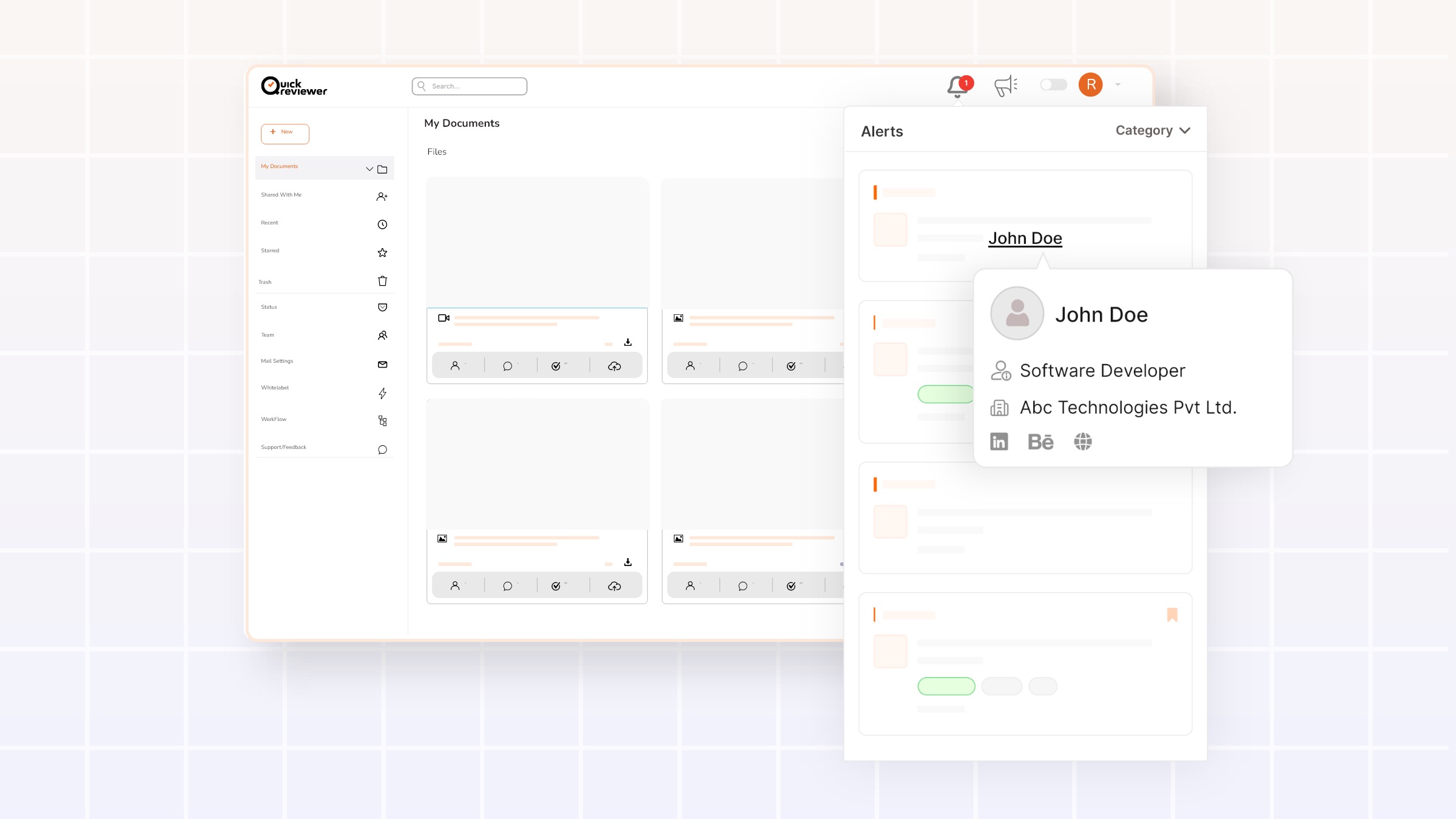
Any name shown in an alert can be:
- Hovered over
- Or clicked
…to view that person’s profile information.
This small detail helps especially in distributed teams and agency–client setups, where people may not know each other by name yet:
- Confirm if the feedback is from the client-side CMO or an internal junior reviewer
- Spot which collaborator is consistently driving a certain thread
- Align responses with the right level of detail and context
9. Data Hygiene: Alert Retention and Deletion Rules
To keep the Alerts center focused and performant, QuickReviewer applies a clear set of retention rules:
- Only the last 30 days of alerts are shown in this section
- Alerts older than 30 days are deleted automatically
- If a file is permanently deleted, all related alerts—including bookmarked ones—are also deleted
This mirrors healthy data hygiene practices used in modern SaaS notification centers, where outdated alerts are removed to keep inboxes meaningful.
The result: when you open Alerts, you’re always looking at a fresh, relevant view of your projects.
How to Use the New Alerts as Your Daily Creative Action Center
Here’s a simple, repeatable workflow that many teams can adopt:
1. Start your day with @Mentions
- Open Alerts
- Filter by @mention
- Respond to anything that requires your direct input or decision
This prevents blockers from snowballing across time zones and stakeholders.
2. Move to Proof Status Changes and Version Upgrades
- Switch to Proof status change
- Look for items marked Rework (pastel red) or important Custom statuses
- Then check Version upgraded to make sure you and your team are working on the latest files
This ensures production doesn’t move forward on outdated or rejected assets.
3. Review Comment Clusters on Key Proofs
- Use the Comment category
- Expand clusters for high-impact proofs (e.g., campaign masters, hero videos)
- Quickly scan up to 5 most recent comments with page numbers / timestamps
Address comments in-context from the proof itself, then return to Alerts to continue triaging.
4. Bookmark Anything That Needs Deeper Work
While scanning, bookmark alerts that:
- Require thoughtful creative changes
- Need cross-functional input (legal, brand, product)
- Are part of high-stakes campaigns
Later in the day, switch to the Bookmarked category and resolve those in a focused, uninterrupted session.
5. End-of-day sweep with Proof Uploads & Shared Items
- Check Proof uploaded to see any late-day uploads from teammates or partners
- Check Proof / Folder / Workspace Shared to onboard yourself to anything newly shared with you
This keeps you in sync without relying on extra chat messages or emails.
What This Means for Your Team (and Why You Don’t Want to Lag Behind)
Teams that use a centralized, actionable notification center consistently report:
- Faster response times on key collaboration events
- Fewer missed approvals and late surprises
- Less time spent hunting through email or chat to find “that one file someone shared last week”
With the redesigned Alerts:
- Designers get a clear, prioritized feed of where to focus edits
- Marketers and brand managers see the status and discussion health across multiple campaigns
- Agencies and clients stay aligned, even across regions and time zones
If your current review process still depends on fragmented email notifications, scattered chat messages, or manual follow-ups, you’re likely losing time—and risking last‑minute fire drills—on every campaign.
QuickReviewer’s new Alerts turn that chaos into a calm, structured action center.
Next Steps: Make Alerts Your First Stop, Not an Afterthought
To get the most value from the new Alerts:
- Make Alerts your default starting point when you log into QuickReviewer
- Encourage your team to use @mentions for direct questions and blockers
- Train proof owners to watch status change and version upgrade categories
- Adopt bookmarking as part of your personal workday rhythm
As your projects grow and your creative collaborations span more people and regions, this redesigned Alerts center is there to make sure no proof, comment, or decision slips through the cracks.
