Skip to content
  • Home
    • All Features
  • Solutions
    • Enterprises
    • Freelancers & Startups
    • Creative Agencies
    • API Solutions
  • Use Cases
    • Video & Animation
    • Web & Interactive
    • Publishers
  • Role
    • Marketing Teams
    • Creative & Design Teams
    • Project Managers
    • Editorial Teams
  • Pricing
  • Resources
    • Desktop Uploader
    • Integrations
    • Knowledge Base
    • Latest Updates
    • Video Tutorials

Start free trial

We bring together everything that’s required to build websites. Reach more customers, save time and money, and boost sales.

Edit Content

    • Facebook
    • Instagram
    • Twitter
    Purchase Theme
    Login

    Getting Started

    • Are there any instructional videos that can be used to train oneself?
    • How do I contact the support team?
    • Signing Up
    • What is QuickReviewer?

    Homescreen

    • Is there any option to sort uploaded files?
    • What is ‘Shared with me’?
    • I accidentally deleted a file, can I get it back?
    • What are Starred files?
    • How do I create and manage my team?
    • Manage Account

    Image Proofing

    • Is there enough space to post comments on a small image?
    • What image formats does QuickReviewer support?
    • Can I upload PSD and AI files?
    • Can I upload animated GIFs?

    Integrations

    • Dropbox Integration
    • Adobe CC
    • YouTube
    • Box Integration
    • Zapier Integration

    PDF Proofing

    • What file formats does QuickReviewer support?
    • Do other document types work just like PDF?
    • Is it possible to view stacked versions of PDF files?
    • Can I zoom into the page size while viewing the PDF file?
    • How do I sort comments in a multi-page PDF file?
    • What annotation options are there in PDF files?
    • Can I download a file with all the comments?

    Proofing Window

    • I want to reply on the given review or comment. Is it possible?
    • There are too many comments, how can I find a specific comment?
    • Is it necessary for everyone to register in order to view or comment on a file?
    • Version Comparison
    • Can I compare the version and mark annotations?
    • Can I delete a comment?
    • Can I download a file with all the comments?

    Upload & Share

    • File upload is taking really long
    • What file formats does QuickReviewer support?
    • Uploading revisions
    • How do I share multiple files?
    • What are the options when sharing a file on QuickReviewer?
    • What is the maximum size of a file that can be uploaded to QuickReviewer?
    • Is it necessary for everyone to register in order to view or comment on a file?
    • How to Create and Manage Workspaces
    • Setting Expiry and Reminders
    • Sharing Files
    • Sharing folders
    • Uploading files

    Video Proofing

    • What file formats does QuickReviewer support?
    • How can I add comments to video file?
    • Can I adjust the video speed?
    • Is there any zoom option available while reviewing video files?
    • How do I sort comments in a video?
    • Can I download a file with all the comments?

    Website and HTML Proofing

    • How do I add comments to an HTML file?
    • Is it possible to see the HTML preview in a responsive mobile view?
    • If the same file has comments on different view modes (mobile and desktop), will I be able to view all the comments together?
    • How to add an html file for review?
    • How can I review live websites?
    • How can I review online content using link-based proofing?
    View Categories
    • Home
    • Support
    • PDF Proofing
    • What annotation options are there in PDF files?

    What annotation options are there in PDF files?

    < 1 min read

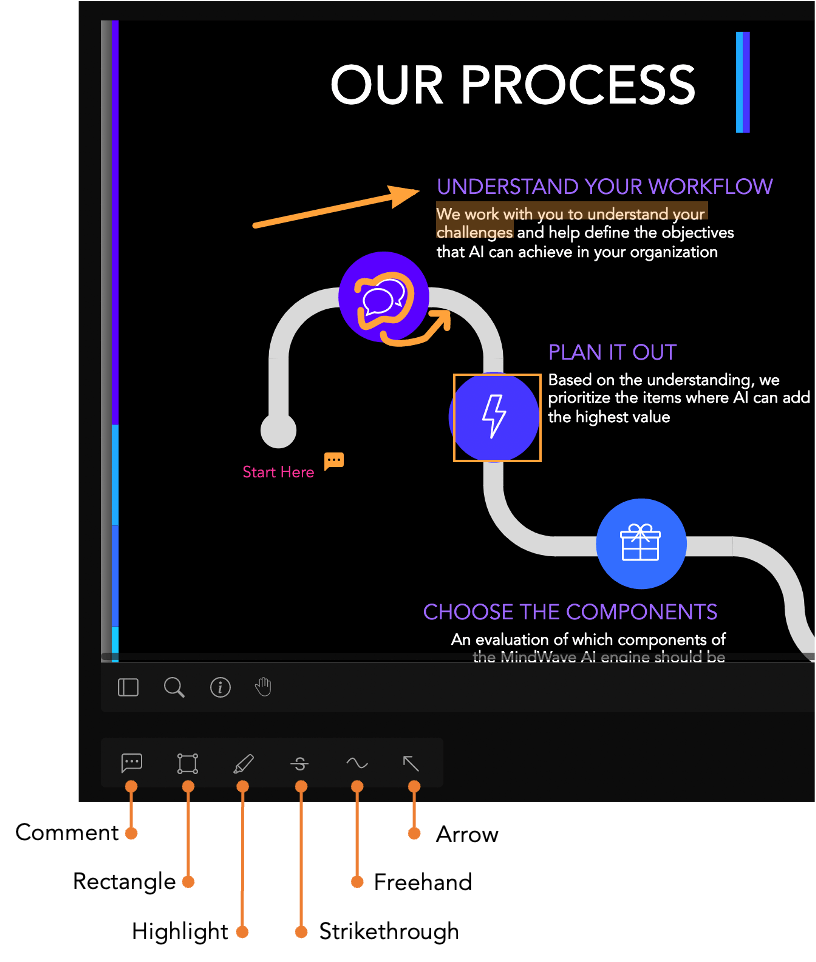
    While viewing the file you can make comments and respond to the given comments. You can also highlight or strikethrough the text and compare file versions with each other.

    PDF annotation interface in QuickReviewer, displaying various markup tools such as highlights, comments, and drawing options on a document

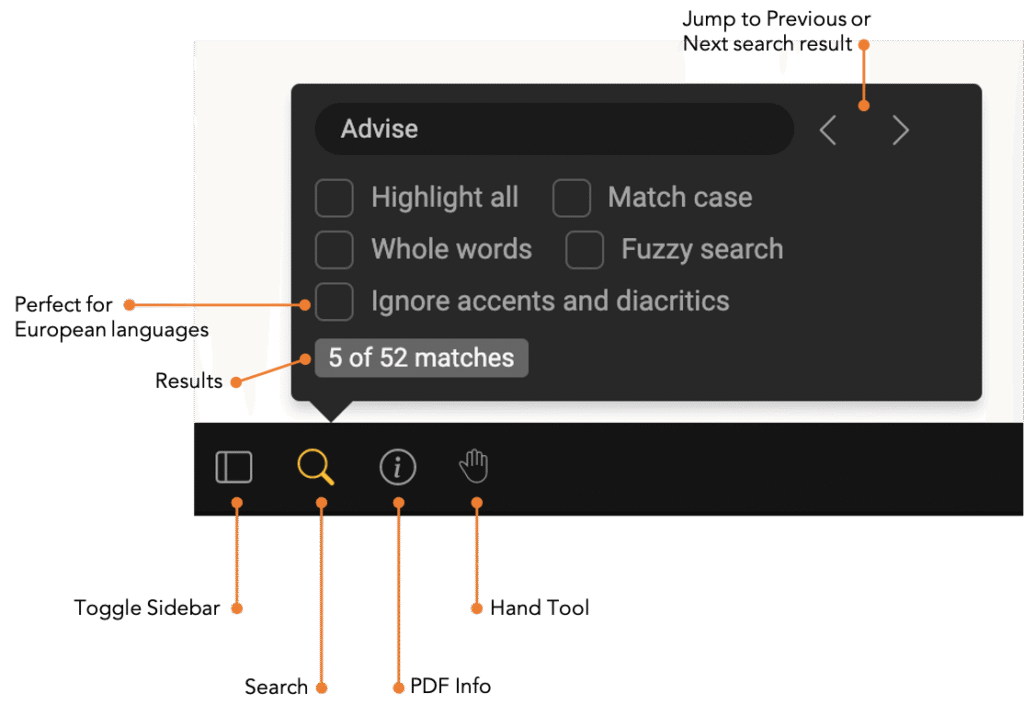
    There is also an option to find a phrase or a word from the document using the search icon. Highlight all words, match case or match whole word. Allow fuzzy search and ignore characters with accents (eg. à, ê, ç, ï) and jump between the next and previous searched word. 

    QuickReviewer interface displaying a PDF document with a search bar and highlighted search results

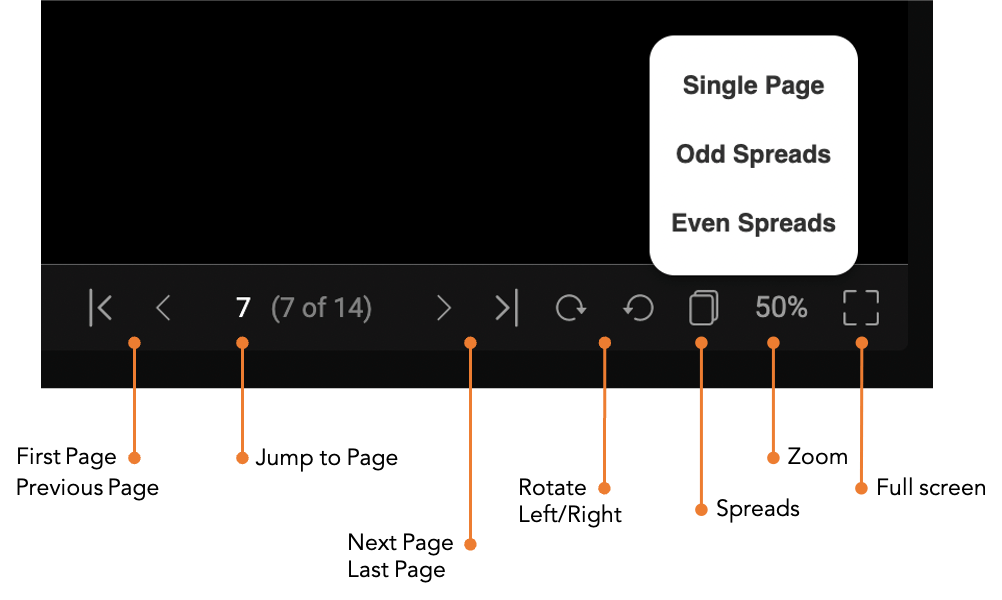
    The page navigation tools at the bottom right give you a list of options to:

    • > Navigate to the first, previous, next or last page
    • > Jump to any page by entering the page number
    • > Rotate the PDF clockwise or anticlockwise. Comments rotate with the page
    • > For books, brochures and print collateral you can view odd and even spreads
    • > Zoom up to 400%
    • > View the PDF in full screen view


    QuickReviewer interface displaying additional PDF options, including annotation, commenting, and review tools

    What are your Feelings

    Share This Article :

    • Facebook
    • X
    • LinkedIn
    • Pinterest
    Still stuck? How can we help?

    How can we help?

    Get pixel-perfect clarity on any creative asset and accelerate your time-to-market.

    Get Started
    Schedule Demo
    • Free For Life
    • Affordable Upgrades
    • Flexible Add-ons

    QuickReviewer is an advanced online proofing platform engineered to solve the most complex creative review challenges.

    Solutions
    • Enterprises
    • Freelancers & Startups
    • Creative Agencies
    • API Solutions
    Resources
    • Desktop Uploader
    • Latest Updates
    • Integrations
    • Video Tutorials
    • Blogs
    Product
    • Feature Glossary
    • Knowledge Base
    • Partnership Program
    • Pricing
    Get in touch
    • Contact Us

    ©2025 Clavis Technologies. All Rights Reserved.

    • Terms & Conditions
    • Privacy Policy
    • License Agreement
    • Sitemap