

• Home
    • All Features
  • Solutions
    • Enterprises
    • Freelancers & Startups
    • Creative Agencies
    • API Solutions
  • Use Cases
    • Video & Animation
    • Web & Interactive
    • Publishers
  • Role
    • Marketing Teams
    • Creative & Design Teams
    • Project Managers
    • Editorial Teams
  • Pricing
  • Resources
    • Desktop Uploader
    • Integrations
    • Knowledge Base
    • Latest Updates
    • Video Tutorials
Login

Getting Started

  • Signing Up
  • How do I contact the support team?
  • Are there any instructional videos that can be used to train oneself?
  • What is QuickReviewer?

Homescreen

  • How do I create and manage my team?
  • Manage Account
  • What are Starred files?
  • I accidentally deleted a file, can I get it back?
  • What is ‘Shared with me’?
  • Is there any option to sort uploaded files?

Image Proofing

  • What image formats does QuickReviewer support?
  • Can I upload PSD and AI files?
  • Can I upload animated GIFs?
  • Is there enough space to post comments on a small image?

Integrations

  • Dropbox Integration
  • Adobe CC
  • YouTube
  • Box Integration
  • Zapier Integration

PDF Proofing

  • Can I zoom into the page size while viewing the PDF file?
  • Can I download a file with all the comments?
  • How do I sort comments in a multi-page PDF file?
  • Is it possible to view stacked versions of PDF files?
  • Do other document types work just like PDF?
  • What file formats does QuickReviewer support?
  • What annotation options are there in PDF files?

Proofing Window

  • Can I compare the version and mark annotations?
  • Can I delete a comment?
  • Can I download a file with all the comments?
  • Version Comparison
  • Is it necessary for everyone to register in order to view or comment on a file?
  • There are too many comments, how can I find a specific comment?
  • I want to reply on the given review or comment. Is it possible?

Upload & Share

  • How to Create and Manage Workspaces
  • Uploading files
  • Sharing folders
  • Sharing Files
  • Setting Expiry and Reminders
  • Is it necessary for everyone to register in order to view or comment on a file?
  • What is the maximum size of a file that can be uploaded to QuickReviewer?
  • What are the options when sharing a file on QuickReviewer?
  • How do I share multiple files?
  • Uploading revisions
  • What file formats does QuickReviewer support?
  • File upload is taking really long

Video Proofing

  • How can I add comments to video file?
  • Can I adjust the video speed?
  • Is there any zoom option available while reviewing video files?
  • How do I sort comments in a video?
  • Can I download a file with all the comments?
  • What file formats does QuickReviewer support?

Website and HTML Proofing

  • How do I add comments to an HTML file?
  • Is it possible to see the HTML preview in a responsive mobile view?
  • If the same file has comments on different view modes (mobile and desktop), will I be able to view all the comments together?
  • How to add an html file for review?
  • How can I review live websites?
  • How can I review online content using link-based proofing?
View Categories
  • Home
  • QuickReviewer Knowledgebase | Help Guides & Troubleshooting
  • Upload & Share
  • Uploading revisions

Uploading revisions

QuickReviewer allows you to upload multiple revisions. Versions are stacked so not only do all reviewers not have to worry about which version they are reviewing (since it will always be the latest) they can even switch and compare versions.

Select, right click or use the Upload Revision icon on the card that gets activated when you mouse over it. Reviewers automatically get added from the last version to the next so they are always reviewing the latest file.

Manage Versions

Right click and select “Mange versions” to disable unwanted versions.
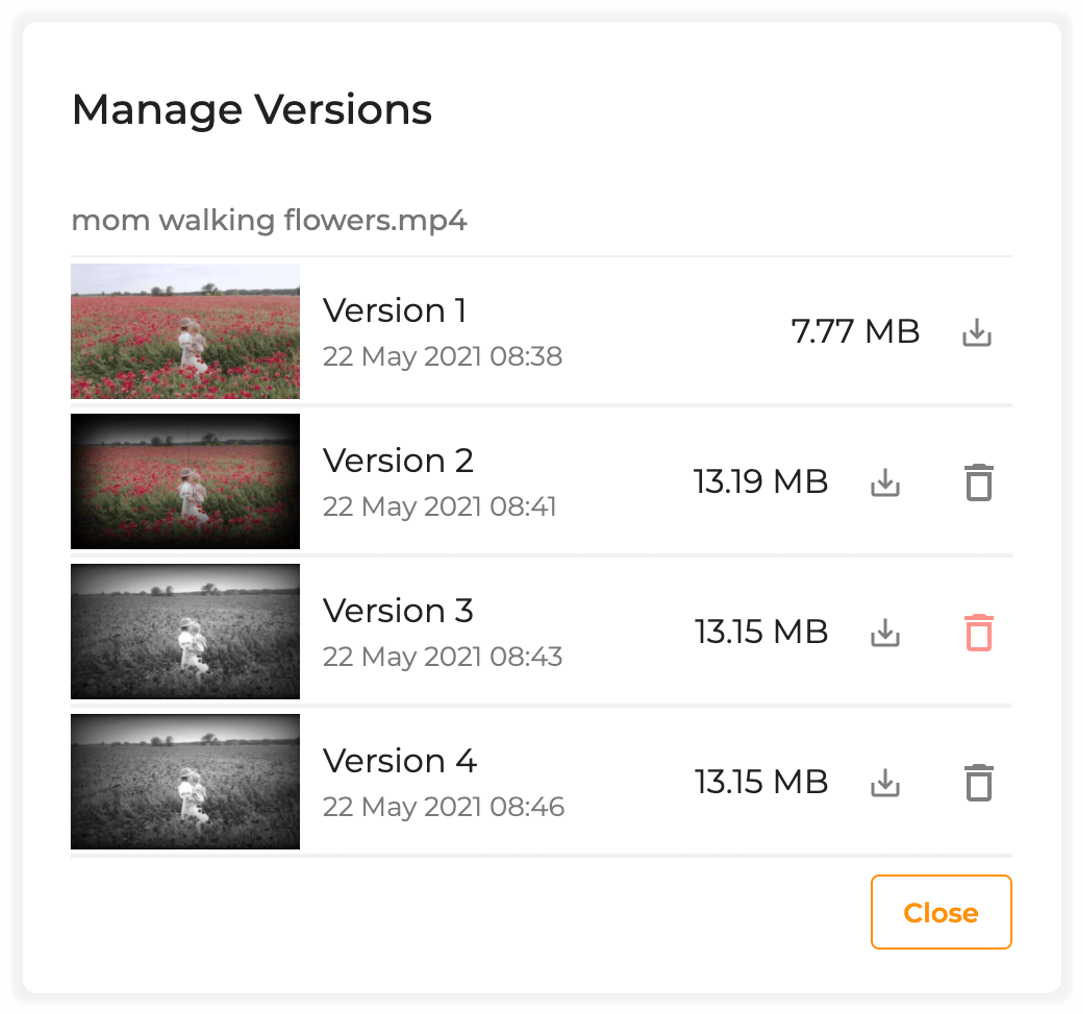
QuickReviewer interface displaying version management features, with multiple file versions listed side by side for easy comparison and review

Switch Between Versions

Once you double click / view a file, the drop down at the top lets you select the version you wish to see.
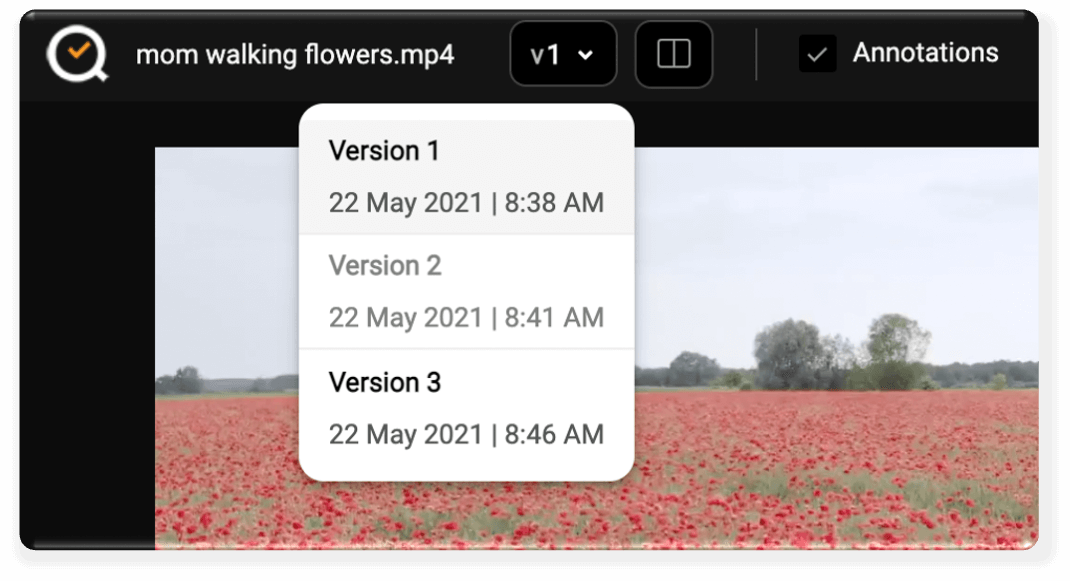
QuickReviewer interface displaying multiple versions of a design file side by side for easy comparison and review

Compare Versions

The side by side view lets reviewers compare two versions to make sure the requested changes were made. See more details on how you can sync files for faster review

Side-by-side comparison view of two versions of a document in QuickReviewer, highlighting differences for easy review and feedback

Restrict Version Sharing

In case you do not want reviewers to automatically see the latest version, use the Shareable Link when you initially share a file for review. That will give them access to only version 1.

QuickReviewer interface showing the 'Share With' feature, allowing users to collaborate by adding reviewers and setting permissions

What are your Feelings

Share This Article :

  • Facebook
  • X
  • LinkedIn
  • Pinterest
Still stuck? How can we help?

How can we help?

Get pixel-perfect clarity
on any creative asset and accelerate your time-to-market.

Get Started
Schedule Demo
  • Free For Life
  • Affordable Upgrades
  • Flexible Add-ons
Logo

QuickReviewer is an advanced online proofing platform engineered to solve the most complex creative review challenges.

Solutions
  • Enterprises
  • Freelancers & Startups
  • Creative Agencies
  • API Solutions
Resources
  • Desktop Uploader
  • Latest Updates
  • Integrations
  • Video Tutorials
  • Blogs
Product
  • Feature Glossary
  • Knowledge Base
  • Partnership Program
  • Pricing
Get in touch
  • Contact Us
©2026 Clavis Technologies. All Rights Reserved.
  • Terms & Conditions
  • Privacy Policy
  • License Agreement
  • Sitemap