Slack Integration
1. Overview
The QuickReviewer Slack App enables seamless collaboration by sending real-time notifications to Slack channels. Users can share files, receive review updates, track comments, and monitor approval or rejection status directly within Slack.
Main Features
- File Sharing to Slack: Share files from QuickReviewer to selected Slack channels.
- Review Notifications: Get notified when files are ready for proofing.
- Comment Notifications: Receive alerts when comments are added during proofing.
- Status Updates: Real-time notifications for Approved or Rework status changes.
- Folder Sharing: Share folders and receive updates when contents change.
2. Step-by-Step Instructions
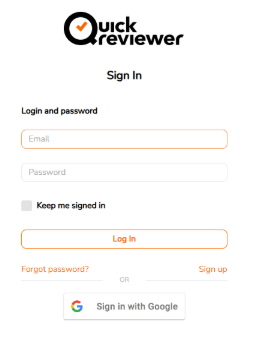
Step 1: Login to QuickReviewer
Step 2: Access Integrations
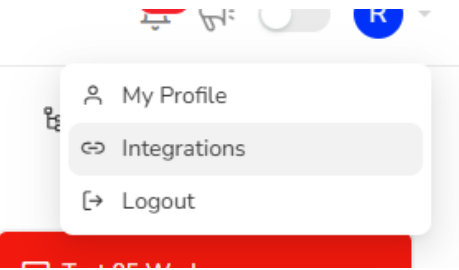
- Click on the Profile icon in the top-right corner of the dashboard.
- Select Integrations from the dropdown menu.
Step 3: Connect to Slack
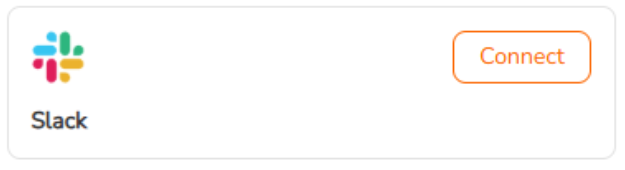
- Locate the Slack integration card.
- Click the Connect button.
Step 4: Authorize Slack App
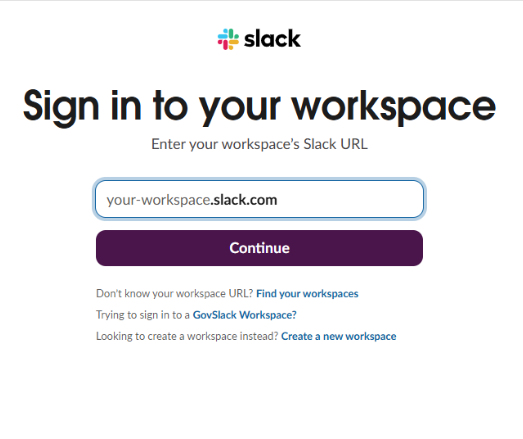
- You will be redirected to the Slack authorization page.
- Review the permissions requested and click Allow.
Step 5: Select Slack Channel
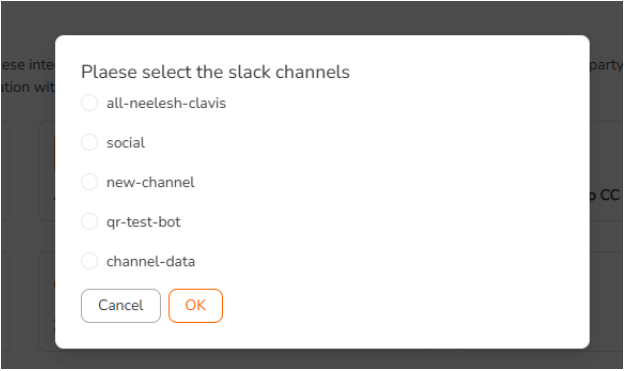
- After authorization, a popup will appear in QuickReviewer.
- Select the desired Slack channel from the list.
- Click OK to finalize the connection.
Step 6: File Sharing
- Open any file in QuickReviewer.
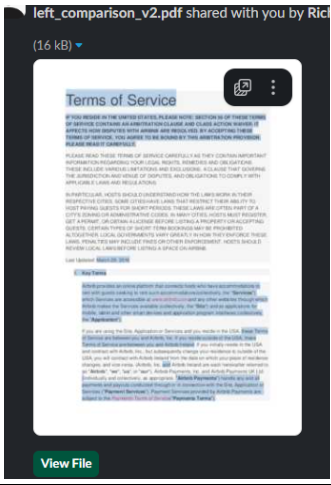
- Share the file using the “Share to Slack” option.
- Verification: Confirm that the file is automatically posted to the selected Slack channel with a “View File” button.
Step 7: Comment Notifications
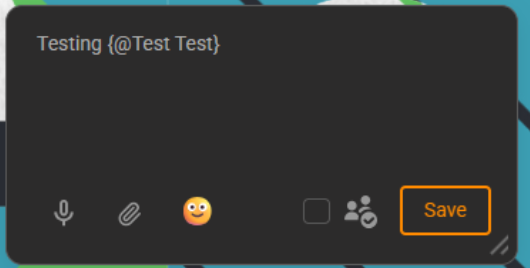
- While proofing a file, annotate to add your comments.
- Verification: A notification should appear in Slack containing:
- Commented by (User Name)
- File Name
- Comment Preview
Step 8: Status Change Notifications
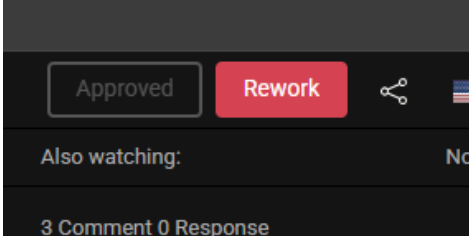
- Change the file status to Approved or Rework.
- Verification: A real-time notification is sent to Slack showing:
- File Name
- Updated Status
- Action performed by (User)
- Timestamp
Step 9: Verify Channel Persistence
- Log out of QuickReviewer and log back in.
- Navigate to Integrations.
- Verification: Confirm that the previously selected Slack channel remains connected and active.