
You can link your Box account to QuickReviewer and share files for review
Connecting to Box
To start with, you will need to sign in to your Box account in order to allow QuickReviewer to access your files and list them within the QuickReviewer interface.
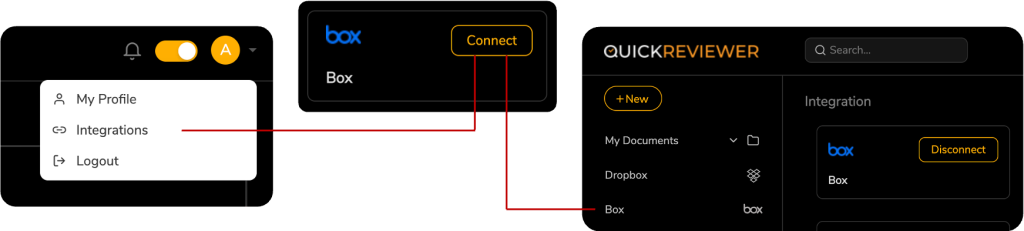
Step 1: Click on the profile icon on top right corner and then click ‘Integrations’
Step 2: In the Box card, click the “Connect” button. You will be redirected to Box sign in page.
Step 3: Provide your Box credentials
Step 1: Click on the profile icon on top right corner and then click ‘Integrations’
Step 2: In the Box card, click the “Connect” button. You will be redirected to Box sign in page.
Step 3: Provide your Box credentials
That is it. If all goes well, you should see folders and files from your Box account in the QuickReviewer interface.
What Box account do I need?
There is no limitations on the kind of Box account. Even a free account will work.
What information does QuickReviewer store from Box?
QuickReviewer does not store any of your personal information when you connect to Box. The files from your Box account are only listed. QuickReviewer does not fetch or store any of these files. The file management is done within Box while QuickReviewer only fetches the file metadata.
What is Linking with Box
When you click on an asset to link it with Box, QuickReviewer will fetch the asset metadata from Box which includes information like asset name, asset link, creation date, etc. QuickReviewer will then store the relevant information within its own database for the purpose of review tracking. Once you have linked to Box, you can use the asset in the same way, as if it was uploaded in QuickReviewer. There are certain limitations that shall be discussed below
Share a file from Box, the same way you would with other QuickReviewer files. Even an audit trail is maintained.
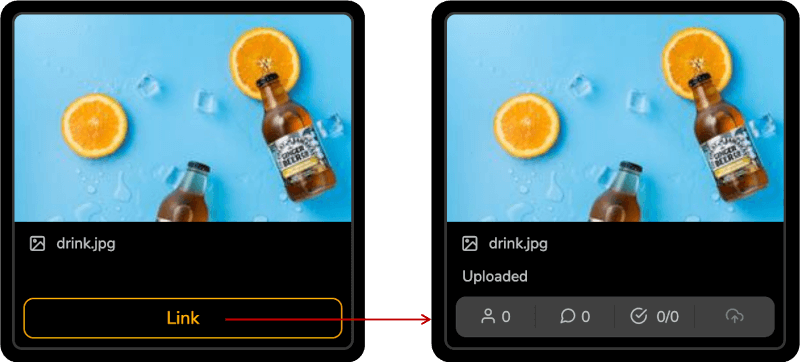
It does not. When you link files from Box, they are not copied over to QuickReviewer and hence no storage consumption is calculated.
What is Linking with Box
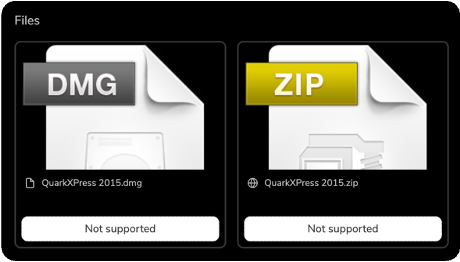
While Box is an asset management platform, QuickReviewer is for review. Certain file type are not supported. As a rule of thumb, any file that can be launched in a browser is supported. For example, if you upload a PSD, AI or ZIP file in Box, opening these formats in a browser is not possible and hence, these file format will not be supported. Moreover, there is a difference when you upload a file to QuickReviewer versus when you link with Box. QuickReviewer processes the file to a format that is supported by most browsers. Take an MP4 file for example. Not all MP4 videos are supported by all browsers. But all (or most) browsers support an MP4 with a specific audio and video encoding. When you upload an MP4 to QuickReviewer, it processes and encodes the file so when you share it with reviewers, the experience is seamless in any browser. Hence, certain files, even if they are supported, may not end up opening as a proof.
How do I unlink a specific asset?
Step 1: Right-Click on the asset and select ‘Remove’ to unlink it from QuickReviewer. This will move it to Trash.
Step 2: Go to Trash and delete the file permanently by selecting ‘Delete Forever’
Step 2: Go to Trash and delete the file permanently by selecting ‘Delete Forever’
We keep the two step process just in case you ‘unlink’ a Box linked file by mistake.
Can I share Box folders?
At this point Box folders are not supported because of the complexity associated with sharing folder. There can be multiple levels in folders, adding to the complexity. However, we do intend to support Box folder sharing in future.
What is the difference between Delete and Disconnect?
Delete removes a single asset. Disconnect unlinks all assets linked with Box.
IMPORTANT: When you Delete a single asset or Disconnect from Box, all comments from reviewers on the file or on all Box assets will be los
IMPORTANT: When you Delete a single asset or Disconnect from Box, all comments from reviewers on the file or on all Box assets will be los
What about support for versions?
In order to load and show a previous version of an asset, Box requires that the version be reverted to. In other words, making a previous version the current version first, and only then does it show the asset. In a review process this is difficult to achieve. Multiple reviewers may be looking at different versions and that would require reverting to versions frequently. The conflict arises when two reviewers request different versions – and this would require reverting to different versions at the same time – something that Box does not allow.
QuickReviewer can show the number of versions available in Box, and even store the comments made on previous versions. However, when a version is switched, it will only show the comments on previous versions and will not be able to show the preview of that version.
What can be done to overcome Box limitations?
QuickReviewer has plans to incorporate a feature that would let you “Add Files to QuickReviewer”. While linking only links the file, add will download the asset to QuickReviewer so that it can be managed and tracked within QuickReviewer. Till then, the only other option you have is to upload files directly to QuickReviewer.
Disconnecting from Box
Disconnecting from Box is a simple process.
Step 1: Click on the profile icon on top right corner and select ‘Integrations’
Step 2: In the Box card, click the “Disconnect” button. QuickReviewer will ask you to confirm if you indeed intend to do that
Step 1: Click on the profile icon on top right corner and select ‘Integrations’
Step 2: In the Box card, click the “Disconnect” button. QuickReviewer will ask you to confirm if you indeed intend to do that
What happens when I disconnect from Box
When you disconnect from Box, any information stored within QuickReviewer about the assets that you linked is removed. This means, when you disconnect from Box, you will loose all comments, audit trails etc. This is an irreversible action.